
Someone asks you what iPhone you have. You say “iPhone 15” but aren’t entirely sure if it’s the regular, the Plus, the Pro, or the Pro Max. You’re buying a case and the listing asks for your model number — something beginning with “A” that you’ve never actually looked up. You’re selling the phone and the buyer wants to verify the exact specification. These are everyday situations where knowing your precise iPhone model number matters, and getting it right takes about thirty seconds.
Why Model Name and Model Number Are Different
Apple uses two identification systems that often get confused. The model name is the consumer-facing label — iPhone 17, iPhone 16 Pro, iPhone 15 Plus. The model number is an alphanumeric code beginning with the letter A — such as A3575 or A2634 — that identifies the exact hardware variant including region, carrier configuration, and storage tier.
The model name tells you the product line. The model number tells you the exact unit, which matters when ordering replacement parts, verifying compatibility, or confirming region-specific features. Both are worth knowing.
Method 1: Settings → General → About
The fastest software-based method that works on any powered-on iPhone.
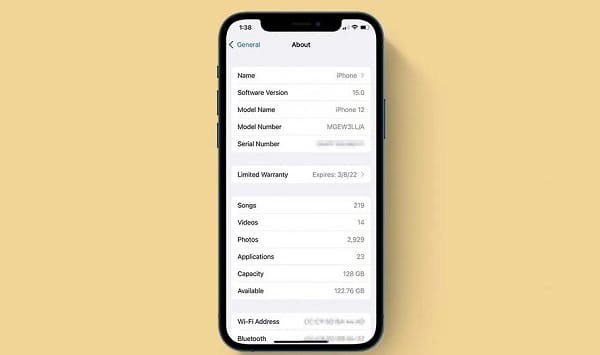
Open the Settings app. Tap General, then tap About. The screen shows your iPhone’s details. Look for two fields:
Model Name — this is the consumer label like “iPhone 16 Pro Max.” Model Number — this initially shows a code beginning with M or N. Tap this field once and it toggles to show the regulatory model number beginning with A, such as A3293. Tap it again and it shows the Apple part number — a longer code specifying colour, storage variant, and region.
The A-series model number is what you need for accessory compatibility, repair enquiries, and Apple Support verification. Note it down or screenshot the About screen for future reference.
Method 2: Physical Inspection — Back of the Device
On iPhone 7 and older models, the model number is engraved in fine print directly on the back of the device. Flip the phone over and look near the bottom — the text is small but clearly legible under good lighting. You’ll see “Model A—” followed by the number.
On iPhone 8 through iPhone 13, the model number is no longer engraved on the back. Instead, eject the SIM card tray using the provided pin tool. Look inside the slot — the model number is printed on the interior wall of the SIM tray opening.
On iPhone 14 and newer US models, there is no SIM tray at all — these devices are eSIM-only. The model number must be retrieved through Settings or other software methods for these devices.
Method 3: Original Box and Packaging
The retail box every iPhone ships in carries complete identification information on the barcode label — model name, model number, storage capacity, colour, and IMEI. If you have the original box, this is the quickest reference that doesn’t require touching the phone at all.
This is particularly useful when verifying a secondhand purchase. The model number on the box must match the model number shown in the device’s Settings → General → About screen. A mismatch is a serious red flag.
Method 4: Apple Check Coverage Website
Visit checkcoverage.apple.com, enter your iPhone’s serial number (found in Settings → General → About → Serial Number), and Apple’s system returns the exact device model, purchase date, warranty status, and AppleCare coverage information.
This method is especially useful for secondhand purchases — it simultaneously confirms the model and verifies that the device hasn’t been reported lost or stolen. The serial number itself encodes regional and configuration information that Apple’s database decodes into a precise device specification.
Method 5: Finder or iTunes on a Computer
Connect your iPhone to a Mac or PC using a USB cable. On Mac running macOS Catalina or later, open Finder and click on your iPhone in the sidebar. The device panel shows the model name. Click the serial number field and it cycles through the IMEI, MEID, and ECID numbers — all useful identifiers.
On Windows, open iTunes, click the device icon, and the Summary tab displays model name and serial number.
Current iPhone Models in 2026
As of mid-2026, Apple’s current lineup includes the iPhone 17, iPhone 17 Plus, iPhone 17 Pro, iPhone 17 Pro Max, and the newly introduced iPhone 17e released in 2026 — the latter carrying model number A3575 for US markets. If your Settings screen shows a model name not matching any of these, you own an older generation device, which is useful to know when checking iOS update eligibility.
FAQs
Q: What is the difference between the model name and model number on iPhone?
A: The model name is the consumer label like “iPhone 16 Pro.” The model number is a technical code beginning with A — used for parts identification, compatibility verification, and regional specifications.
Q: Can I check my iPhone model without turning it on?
A: Yes. Check the back of the device (iPhone 7 and older), the SIM tray slot (iPhone 8 to 13), or the original retail box for the model number.
Q: Why does my iPhone show two different model numbers in Settings?
A: Tapping the Model Number field in Settings toggles between the technical model number (A-series) and the Apple part number. Both identify the same device from different angles.
Q: Does the model number change between countries for the same iPhone?
A: Yes. The same iPhone 17 Pro ships with different A-series model numbers in different regions due to varying cellular band support and regulatory requirements.
Q: How do I verify an iPhone’s model before buying secondhand?
A: Check Settings → General → About for the model number, cross-reference with the retail box label, and enter the serial number at checkcoverage.apple.com to verify authenticity and warranty status.